Motion graphics templates
Overview
At Kyndryl, we don’t build graphics from scratch; we scale using Motion Graphics Templates (MOGRTs). This helps to ensure that all graphics within Kyndryl videos are high quality, on brand, and working every time, everywhere.
The structure of each MOGRT below has been carefully refined to meet our visual needs and should be used as close to stock as possible. Do not deviate from these guidelines without direct approval.
Note
Our MOGRTs have preset durations. These presets can shift the overall duration of the video as well as individual scenes. Ensure that you keep them in mind when putting together the film’s final cut.
Logo in motion
The logo in motion MOGRT dynamically displays the Kyndryl logo and is used only to close content. As a rule, we default to a single-motion logo when building sequences. Generally, this is the MOGRT you should use across content including web, social, presentations and out-of-home advertising. When in doubt, use the logo in motion MOGRT.
There are multiple size options for this MOGRT. Select the one that best matches the resolution (4k, HD or 720p) and shape (square, skyscraper or banner) of the video you are creating.
Logo in motion misuse
- Do not change the logo animation timing
- Do not change the color of the logo
- Avoid stretching or changing animation speed or duration
- Avoid changing the logo’s positioning, scale or rotation
- Avoid placing the logo over an image
- Do not use the logo over B-roll
Text intros
Text intros add dynamic context to the beginning of a visual asset, serving as a bold way to introduce the content.
Below are a few stills of the text intros shown in the video to the right.
Text intros misuse
- Avoid changing the intro animation timing
- Do not change the color of the intro
- Avoid stretching or changing animation speed or duration
- Avoid changing the intro's positioning, scale or rotation
- Avoid showing too much text
- Avoid showing text over faces
Transitions
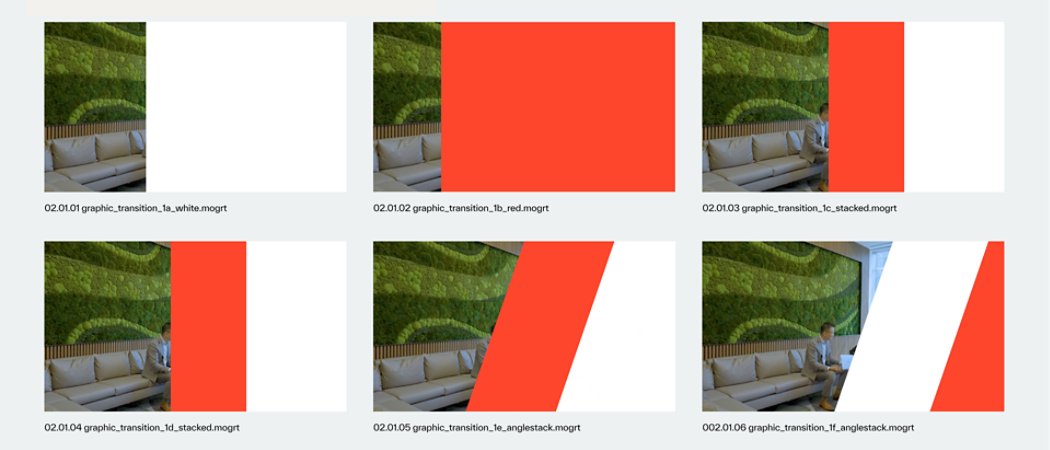
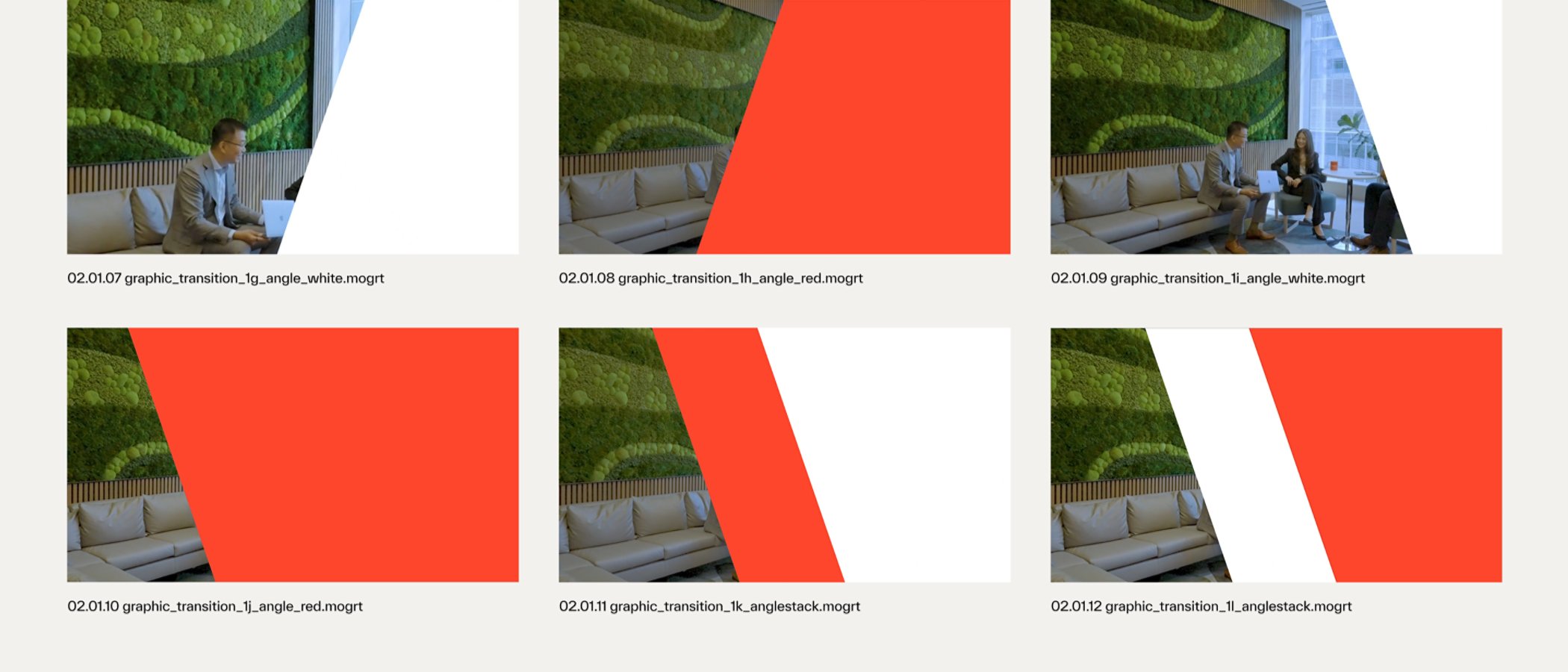
Transitions create fluid crossover points between one visual or scene and the next. A key component of a good transition is that it does so without slowing the motion of the project.
Timing
At Kyndryl, we use two types of transitions: Five seconds or one second. Both types of transitions can be used across deliverable types.
Below are a few stills of the transitions shown in the video above.
Note
There are multiple versions of the same transition, just with different timing. These alternately timed versions allow editors to select the transition that best matches the pace of the edit.
Transitions misuse
- Avoid changing the transition animation timing
- Do not change the color of the transition
- Do not stretch or change speed or duration
- Avoid changing the transition's positioning, scale, or rotation
- Avoid using any Adobe Premiere dissolves, fades, transitions or drips
Dynamic text
Dynamic text, also known as copy in motion, is our illustrative way of displaying standalone text on screen. It dynamically populates one character after another, fills the outline with vivid color and lasts just long enough to read.
There are twelve versions of dynamic text (all shown in the video to the right) to address any need you might have.
Below are a few stills of dynamic text treatments.
Note
Select versions of dynamic text have different sizing and positioning. Each version also has its own character count maximum.
For the treatments below, the character count maximum for headings is 15 characters per line.
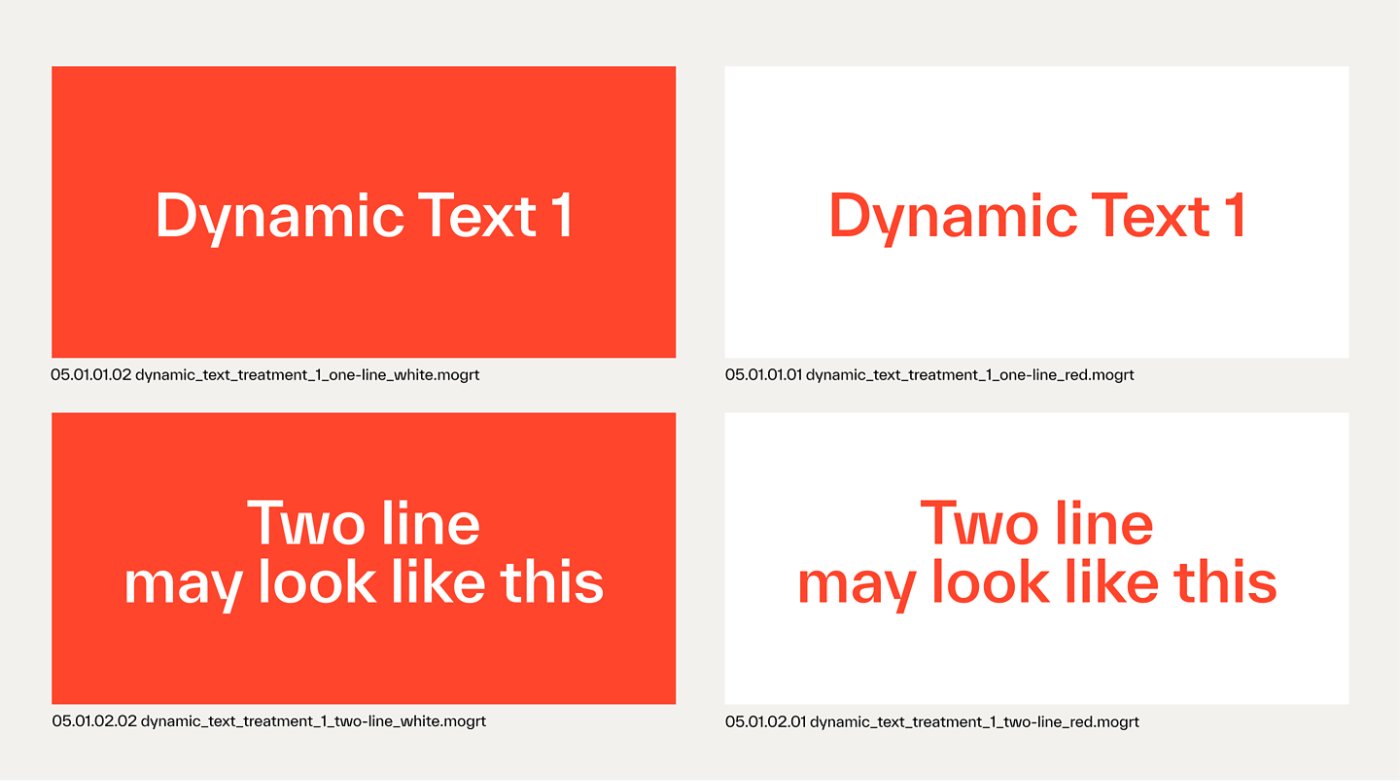
When working with tight character count restrictions, you can quickly run out of space. Even so, do not exceed the spacing requirements. If more copy is needed, please stack the MOGRT in the timeline.
For the treatments below, the character count maximum for headings is 15 characters total.
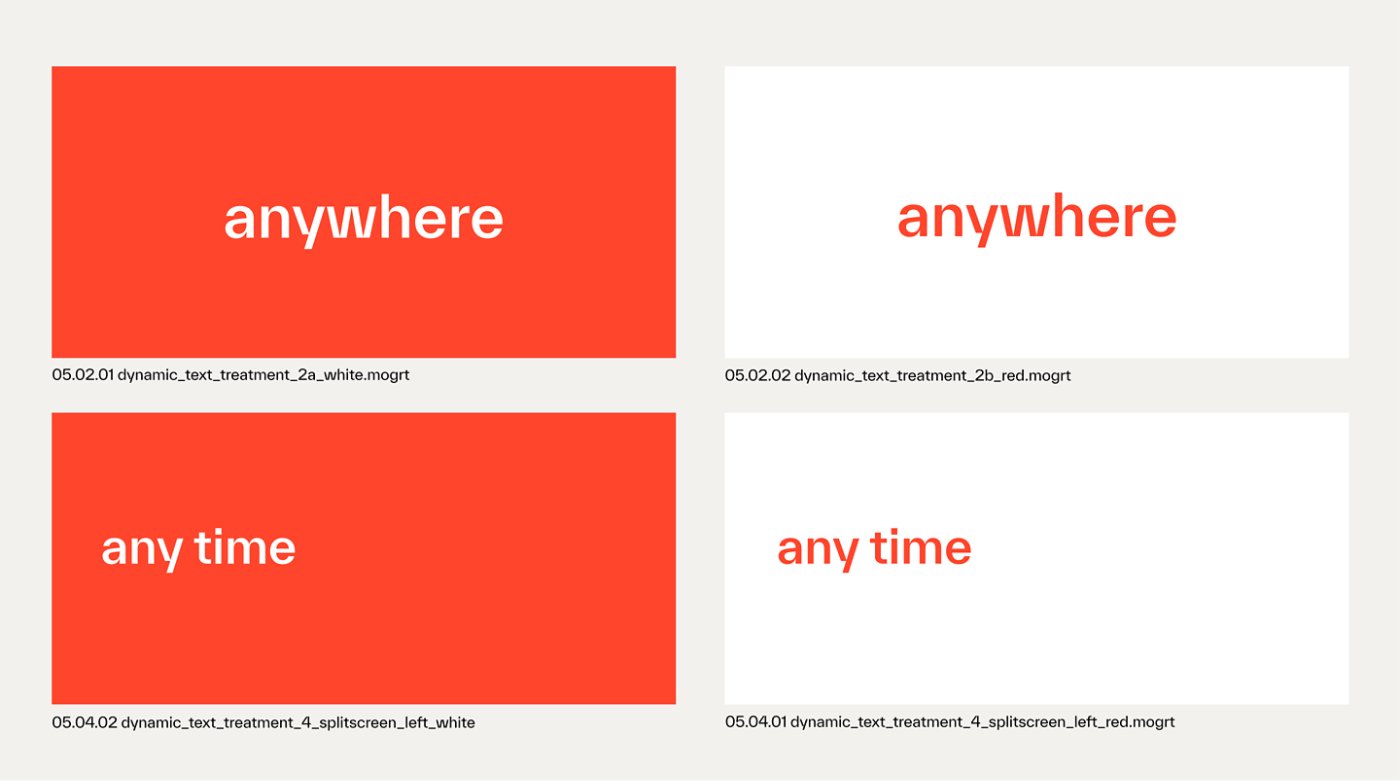
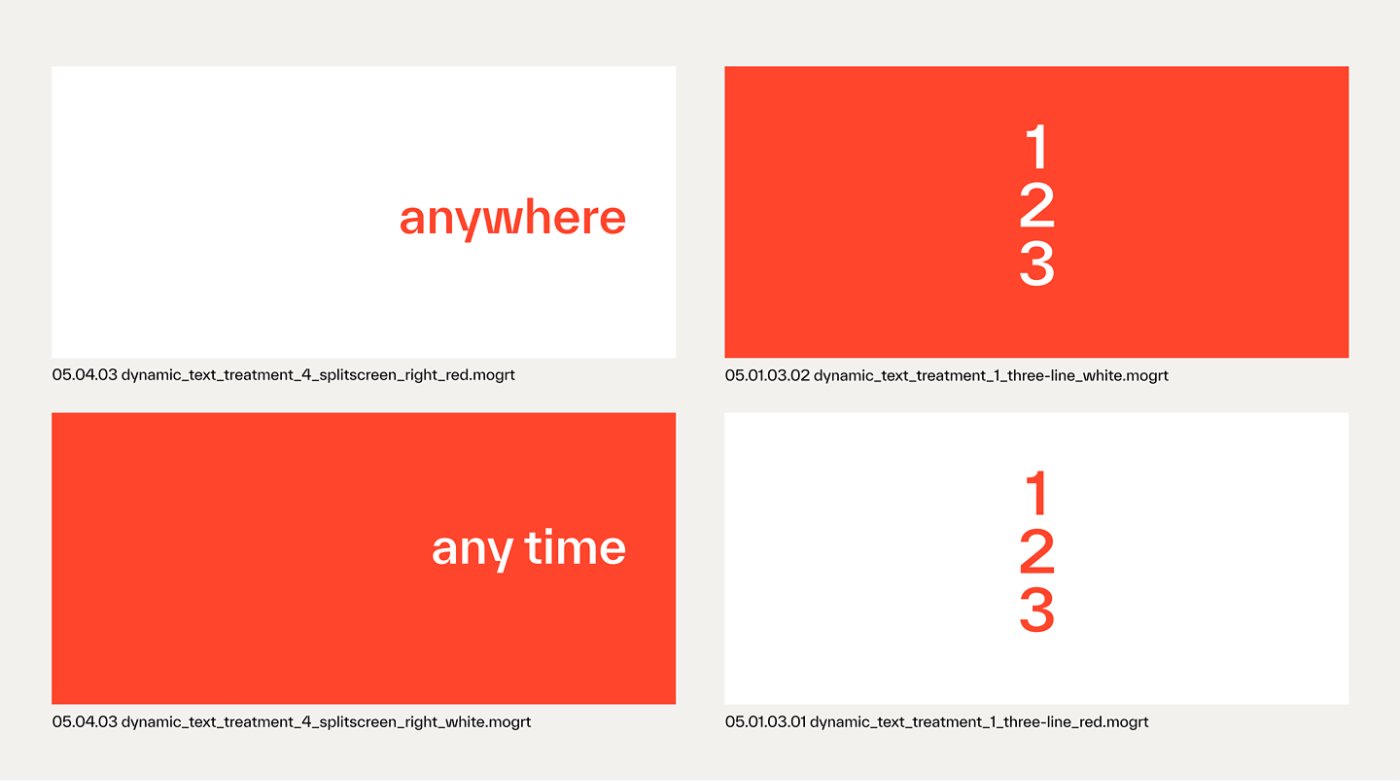
Note
Select versions of dynamic text have different sizing and positioning. Each version also has its own character count maximum.
For the treatments below, the character count maximum for headings is 15 characters per line.
Dynamic text misuse
- Avoid changing the text animation timing
- Avoid changing the color of the logo
- Do not stretch or change animation speed or duration
- Avoid changing the text’s positioning, scale or rotation
- Do not compress, squish or otherwise force text to fit
- Avoid positioning text over a person's face
- Avoid using red text over B-roll
- Do not use burn-in captions
- Never take a subject out of a natural environment—i.e., space or AI altered reality
Lower thirds
Lower thirds, or L3s, are graphics that populate in the lower third of the screen. An L3 displays a person’s name, company and title. At Kyndryl, we have four treatments available, all shown in the video to the right.
Below, you'll see static examples of each treatment.
Misuse: Changed scale and position
Lower thirds misuse
- Avoid changing the L3 animation timing
- Avoid changing the color of the L3
- Do not change the font size or style
- Avoid stretching or changing animation speed or duration
- Avoid changing the L3's positioning, scale, or rotation
- Do not use L3s in two shots (they’re reserved for single shots)
Split screens
Split screens display either dual-video content or video and text content side by side with a vertical line separating them exactly at the midpoint. The split-screen treatment serves to highlight important points of information that the audience should remember. It also breaks up the monotony of a single video frame and adds a fresh visual element to create a more dynamic and engaging viewing experience.
Split-screen content should be used when you’re looking to increase retention and comprehension of complex concepts. Its purpose is to call out text and/or visuals by combining visual and auditory cues for viewers to see and hear the information at the same time.
Below are two examples of split screen content.
Note
Each MOGRT’s line count can vary, but the length of any one line will never exceed 15 characters. If more copy is needed, stack within the timeline.
Split screens misuse
- Avoid changing the animation timing
- Do not change the color of the text on solid backgrounds
- Avoid stretching or changing animation speed or duration
- Do not change positioning, scale or rotation
- Avoid compressing, squishing or otherwise forcing text to fit
Single and dual box usage
Single box
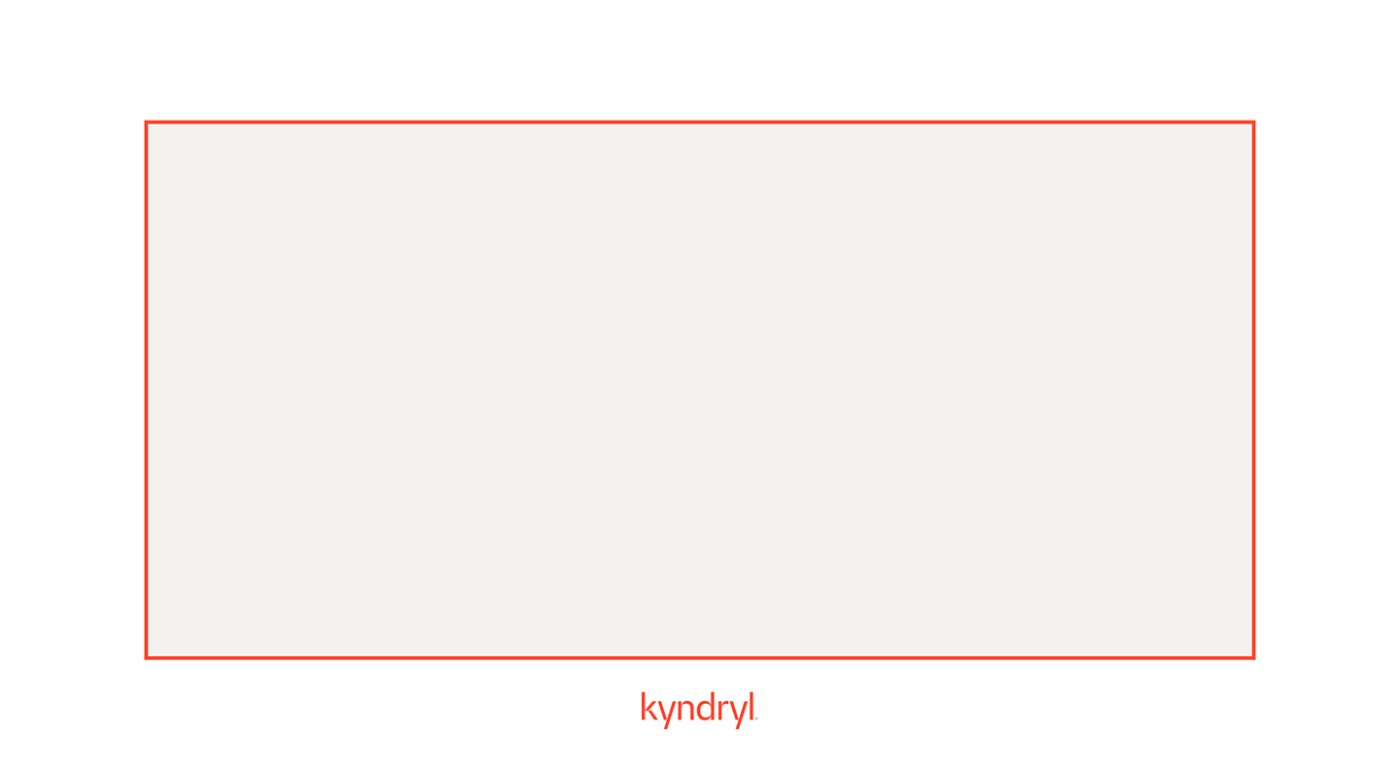
Our single box treatment is reserved for framing single-speaker, remotely recorded visual content that does not include B-roll.
At Kyndryl, we prefer on-site recording whenever possible. However, when remote recording occurs, we use our single box template to mask the reduced video quality of our remotely recorded assets. The white "container" or "frame" keeps the content at optimal resolution while taking the visual focus off of bedrooms, living rooms and other potentially distracting at-home backgrounds.
Single box misuse
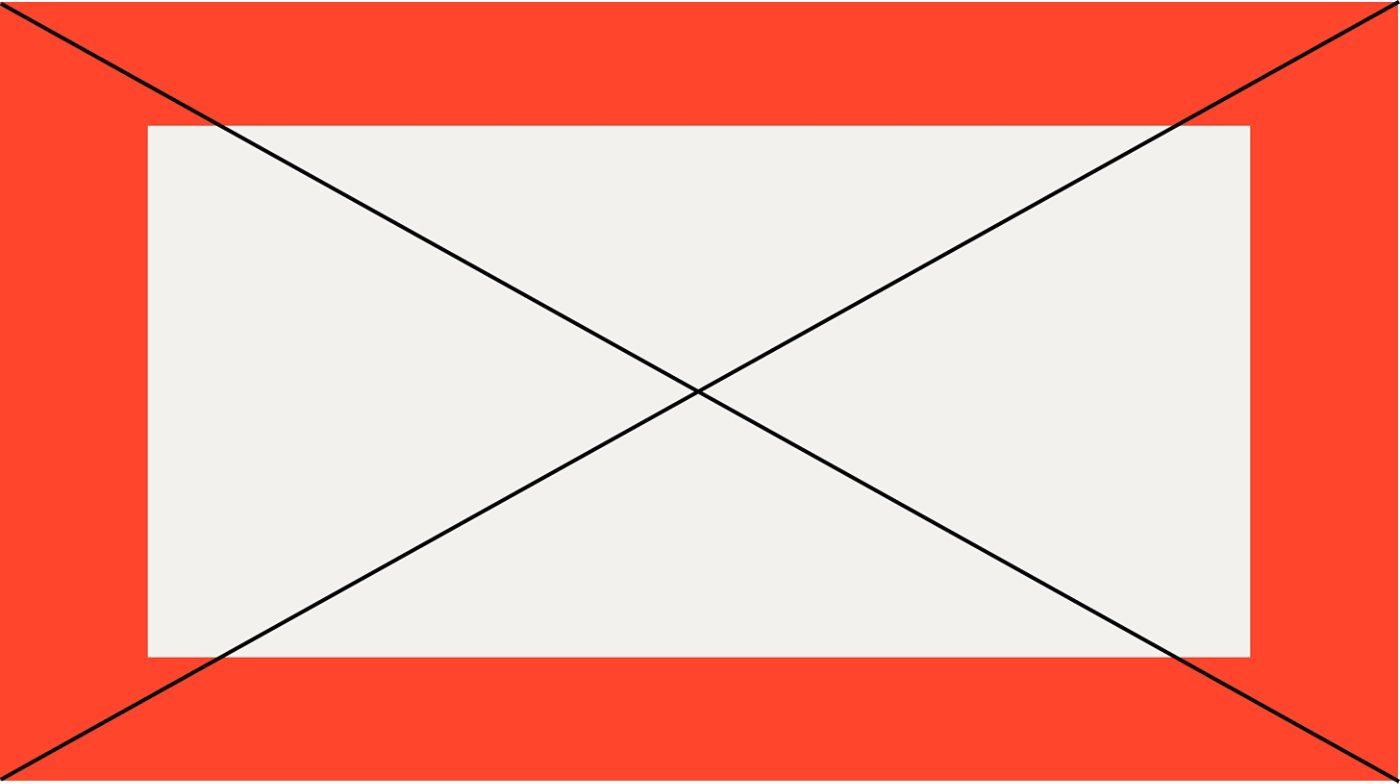
- Do not change the box color
- Avoid stretching or changing size or shape
- Avoid changing positioning, scale or rotation
Dual box
Like our single‑box treatment, our dual‑box treatment is intended for two‑speaker, remotely recorded content that does not include B‑roll. The white container helps manage reduced video quality by minimizing visual scale and drawing focus away from distracting at‑home backgrounds, keeping attention on the speakers.
Dual box misuse
- Avoid changing color
- Avoid stretching or changing size or shape
- Avoid changing positioning, scale, or rotation
Partner lockup
Our partner lockup showcases the logos of Kyndryl alongside a premier partner, emphasizing the collaboration between Kyndryl and the partner.
Note
This MOGRT is limited use.
It can only be used when the Kyndryl Strategic Alliances and Partnership approver has given explicit approval to do so.
Partner lockup misuse
- Avoid changing the animation timing
- Avoid changing color
- Avoid stretching or changing animation speed or duration
- Do not change positioning, scale, or rotation
- Do not use the partner lockup without explicit approval
- Do not mismatch logo sizes
Misuse: Do not mismatch logo sizes